
ChatMai: bring customer chats from several channels into one inbox, and share the work as a team
When customers message a shop on several apps, replies get missed or sent twice. How ChatMai gathers chats from the channels you connect into one inbox, what sits beside each chat, how a team shares the work, and what to check before you connect a channel.
Published
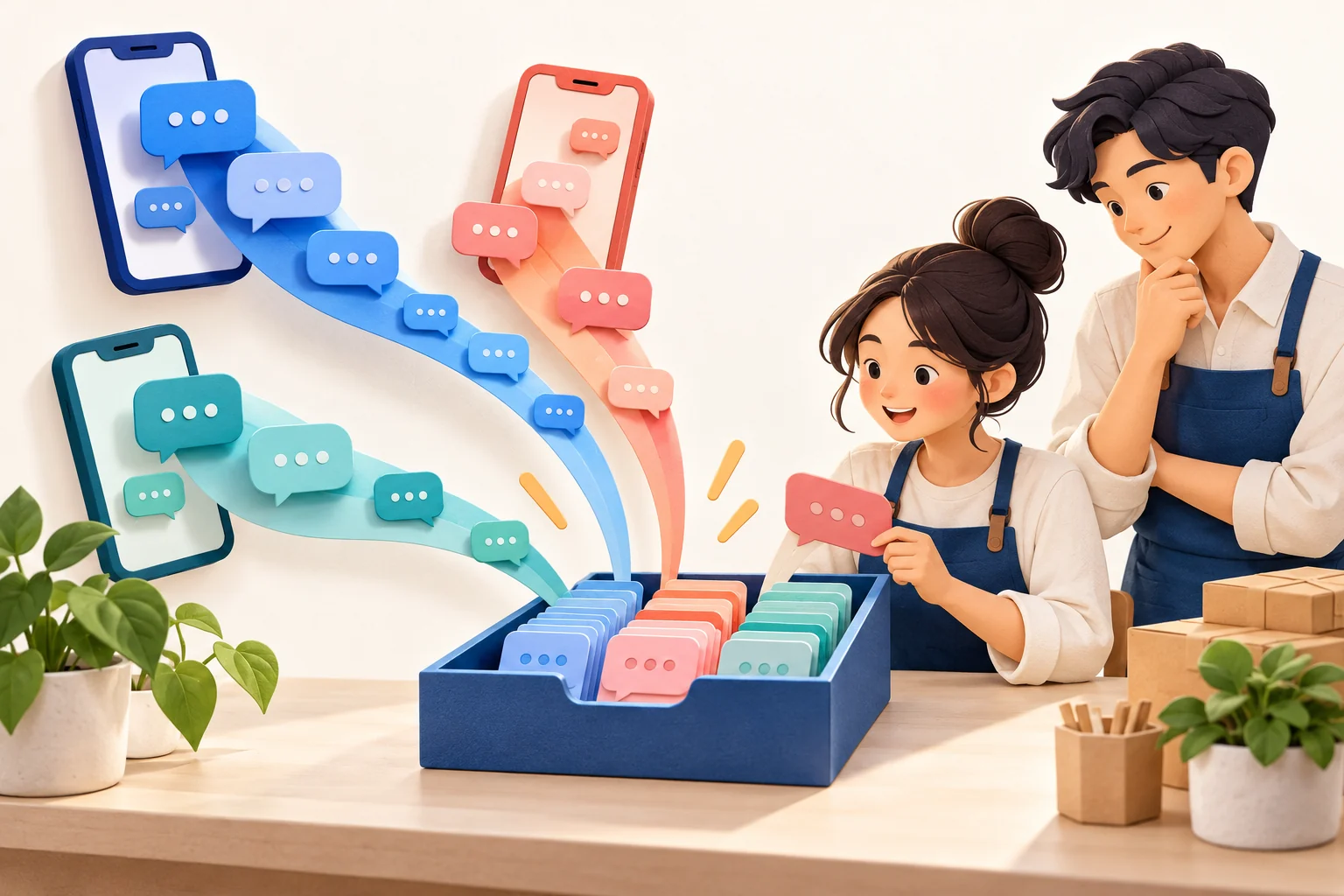
Example: one evening, three apps, two phones
This is a made-up example, not a real shop. A small clothing shop sells through a Facebook Page, a LINE Official Account and an Instagram account. On a busy evening one customer asks about a size on Messenger, another sends a payment slip on LINE, and a third asks on Instagram whether an item is back in stock. The owner and a helper are each checking a different app on a different phone.
Nothing in that evening is unusual, and that is the problem: a message read on one phone is forgotten, two people answer the same customer, or nobody does. A unified inbox does not make customers ask fewer questions. It puts their chats in one place, so the shop can see what is waiting and who is handling it.
One list instead of several apps
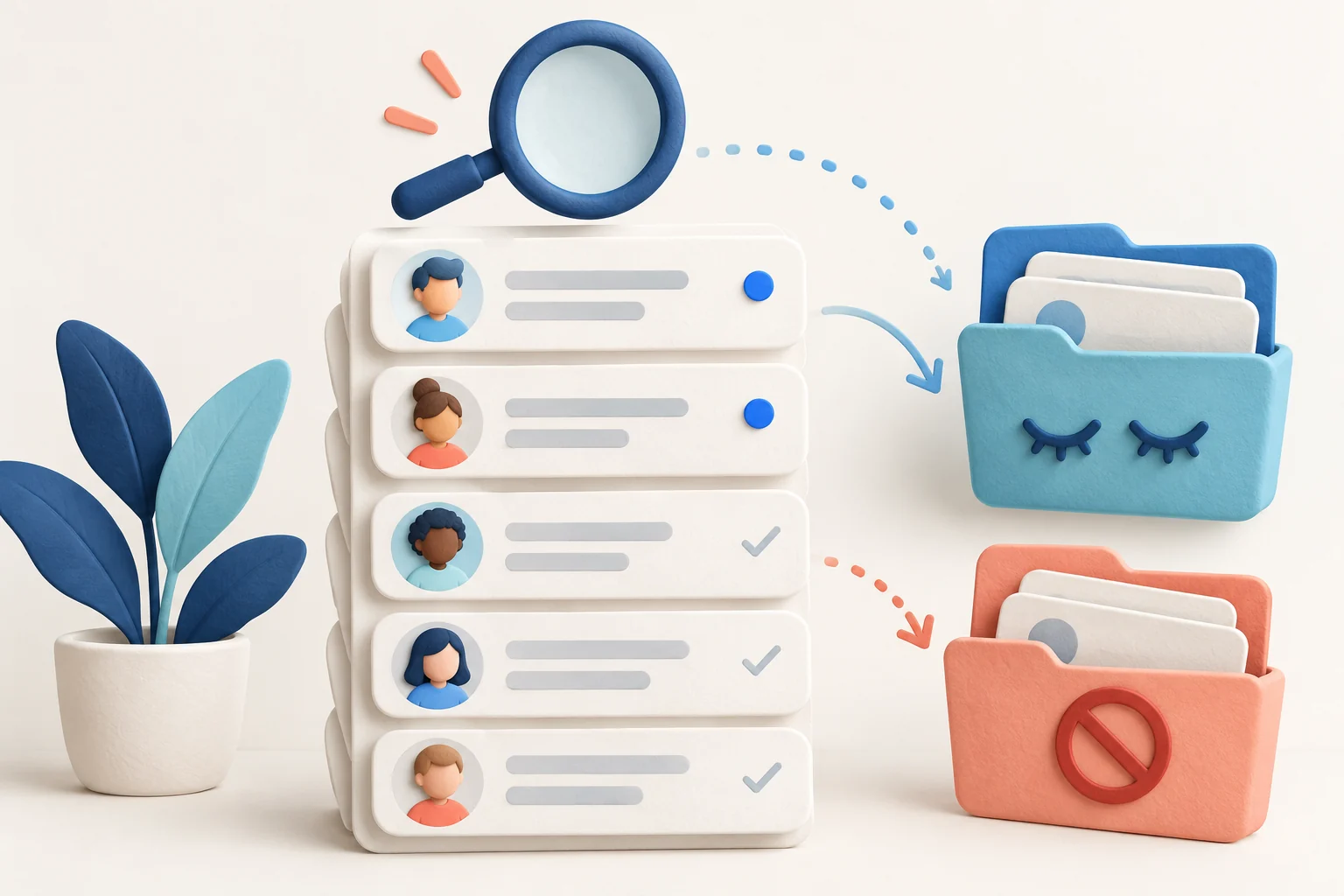
In ChatMai, conversations from the channels you have connected arrive in one conversation list, and new messages appear without reloading the page. From that list you can:
- Switch between all chats, unread chats and chats already read.
- Move a chat to Hidden, or mark it as spam, so it leaves the main list without being deleted.
- Search for a customer.
New messages also appear as in-app notifications. Browser push notifications work only if you allow them in your browser, and they cannot override your device's Do Not Disturb or Focus settings.
Each chat keeps its source and its context
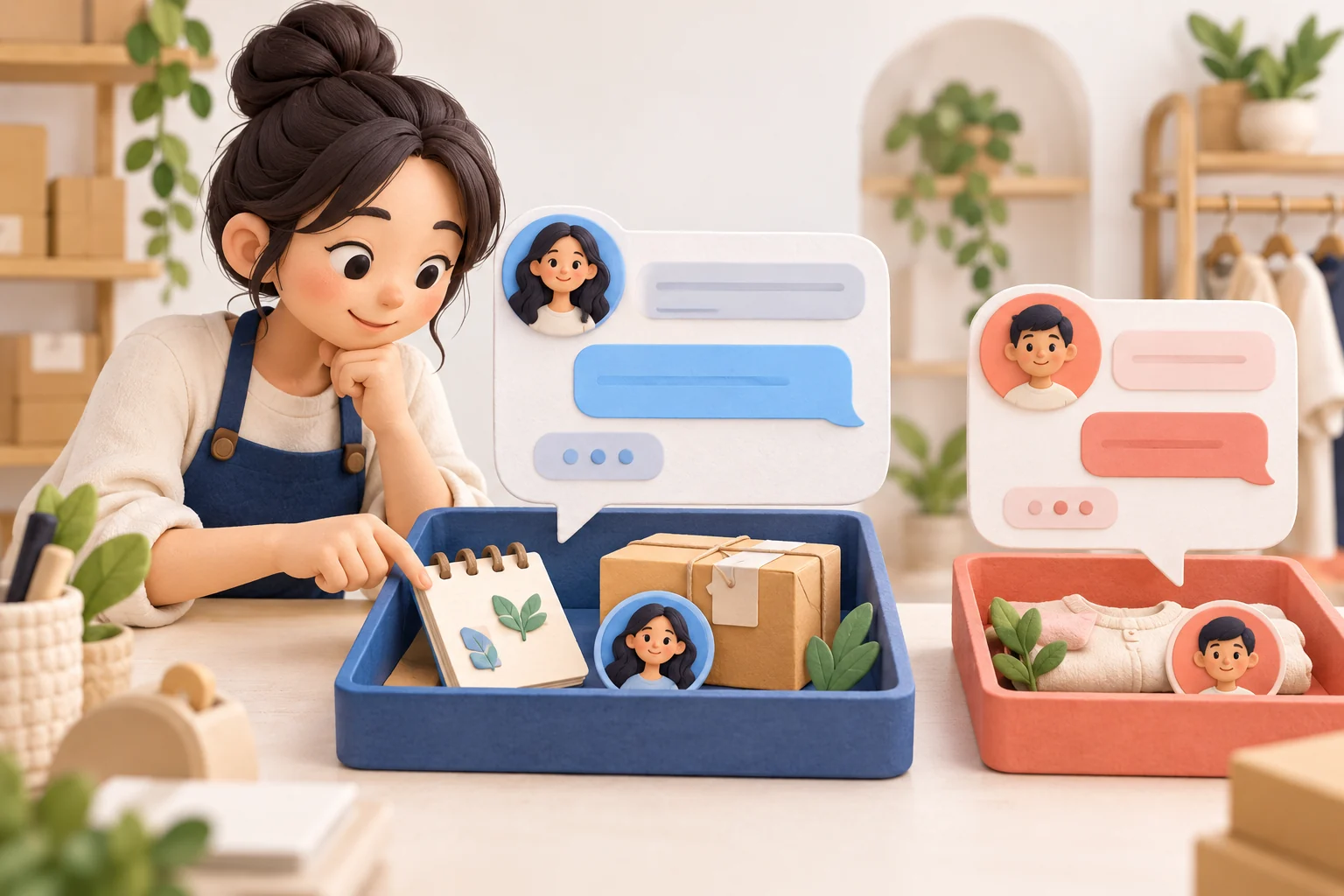
Once chats from several channels share one list, it matters where each one came from. Every chat shows its channel and, when there is one, the name of the Page or account it arrived on. Beside the conversation you can keep:
- The customer's contact details, including a display name you can correct.
- Labels you create, and an outcome for the conversation, so a chat can be marked by what happened in it.
- Products from your catalog linked to the conversation.
- Internal notes for your team, which the customer does not see.
Sharing chats in a team without replying twice
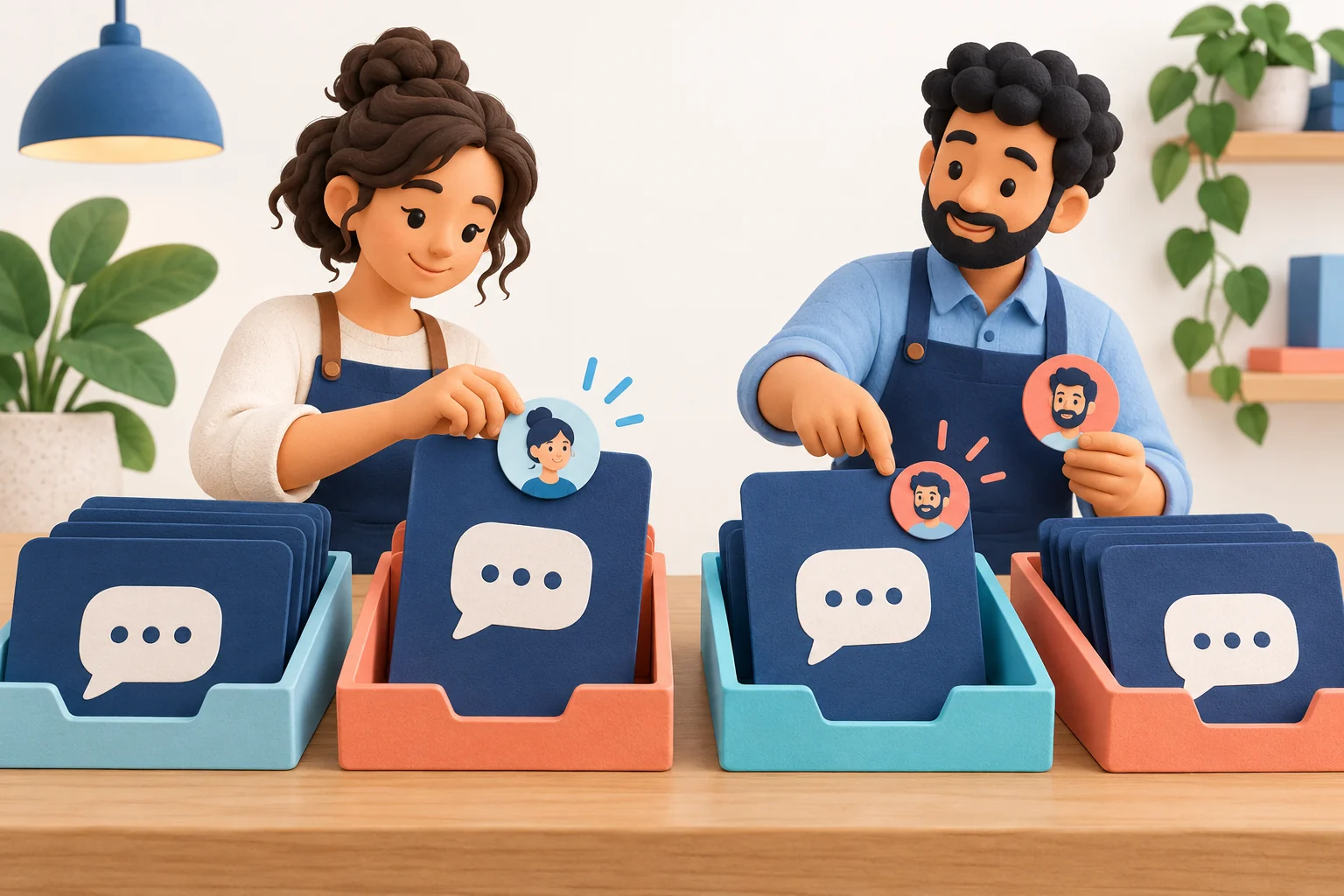
When more than one person answers customers, each chat needs an owner. In the Inbox:
- A chat can be assigned to a team member, picked up by whoever is available, released again, or taken over when needed. The chat header shows whether it is unassigned, yours or someone else's.
- While a chat is assigned to another member, you cannot send a reply in it, so two people do not answer the same customer at once.
- You can see when someone else is viewing the same chat.
Team roles and permissions decide who can do what in the workspace, and an activity log records what was done. A dashboard and conversation and contact analytics show how the inbox is going, and the data can be exported.

Where the AI fits, and where people take over
Automatic AI replies are optional and are set up per channel. Each chat also has its own AI switch, so you can turn the AI off for one customer without changing the rest. When a customer asks for a person, the chat is handed off, the AI pauses in that chat, and the Inbox marks it until someone picks it up or turns the AI back on.
How the AI decides what to say, why it stays silent when your shop's information does not contain the answer, and how unanswered questions come back to you are covered in a separate article.
Read: AI customer replies from your shop's own knowledge
Knowing whether a reply arrived
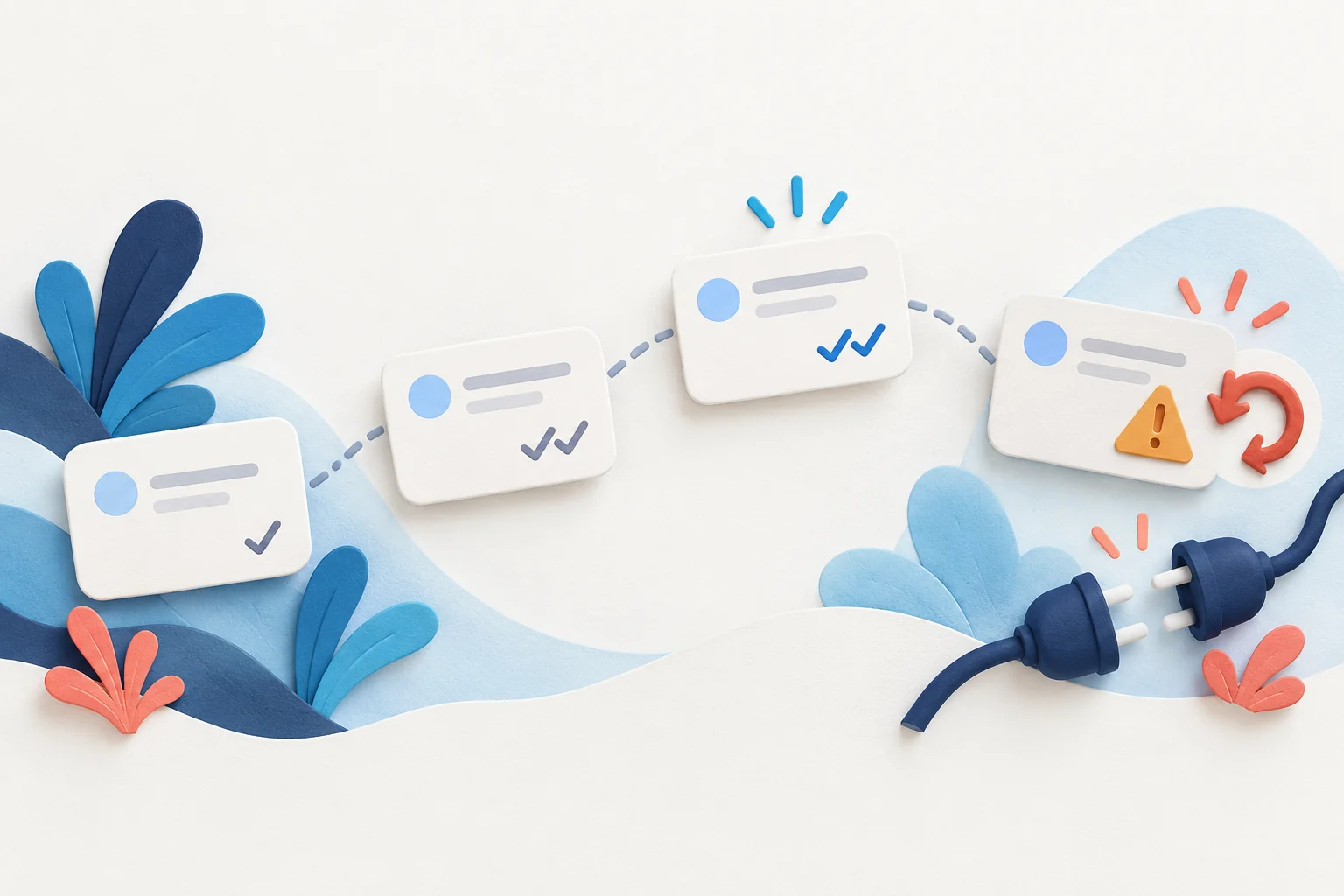
Each message you send shows its state, such as sending, sent, delivered or read, as far as the channel reports it. If a channel refuses a reply, the message says in words that it was not delivered, not only with an icon, and you can send it again from the same message.
If a connected channel has been disconnected, the chat says so and points you to the Connect page to reconnect it.
Which channels can connect
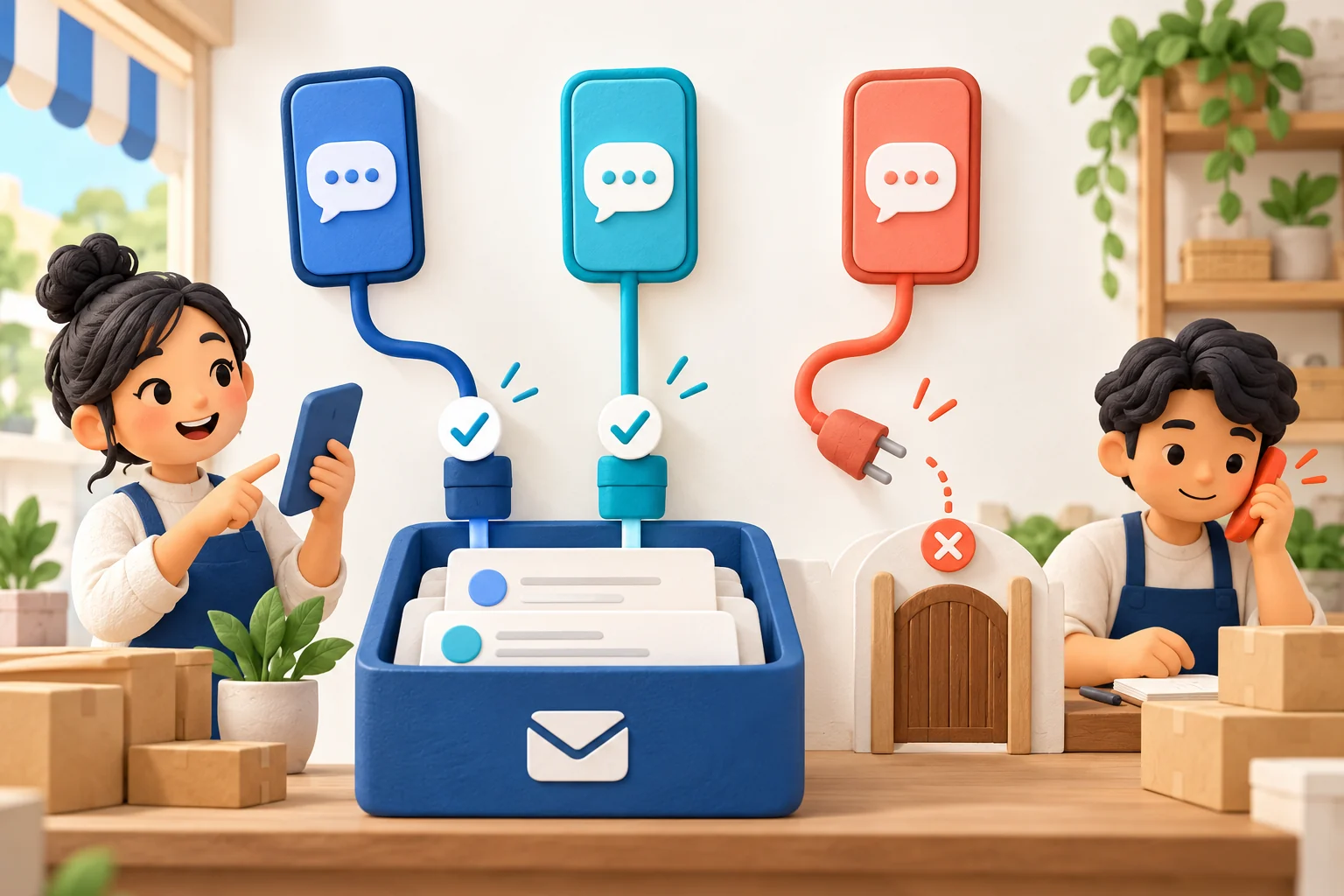
ChatMai is built to connect Facebook Messenger, Instagram professional accounts, LINE Official Accounts, Lazada and TikTok Shop. Whether a channel can be connected for your shop depends on that platform's approval and your account setup, so check each channel you plan to use rather than assuming they all connect straight away.
Shopee chat is not available in ChatMai at the moment. Shopee has told us that a third-party app like ChatMai cannot get access to Shopee's seller chat through its standard process, and that a seller's own app permission cannot be shared with ChatMai. Until Shopee authorizes ChatMai's app in writing, keep answering Shopee chats in Seller Centre or the Shopee app.
You can create a workspace and connect the channels that are available yourself. If you would rather go through the setup with us, contact us and tell us which channels you use.
What a unified inbox does not do
- It shows chats only from channels that are connected. A channel that has not been approved or set up, including Shopee for now, stays in its own app.
- It does not answer customers for you unless you switch on AI replies, and it does not replace checking what is sent in your shop's name.
- It does not reduce how many questions customers ask. It makes it easier to see what is waiting and who is handling it.
- Costs depend on the AI option and the channels you use.
A simple daily routine helps. This is practical advice for your shop, not something ChatMai does for you automatically:
- Assign every waiting chat to someone, so none is left without an owner.
- Check for replies that were not delivered and for channels that need reconnecting.
- Before your shift ends, look through chats that are still unanswered and hand over the ones that need someone.
Put your shop's chats in one place
Create a ChatMai workspace, connect the channels that are available to you, and see your customer chats in one list.